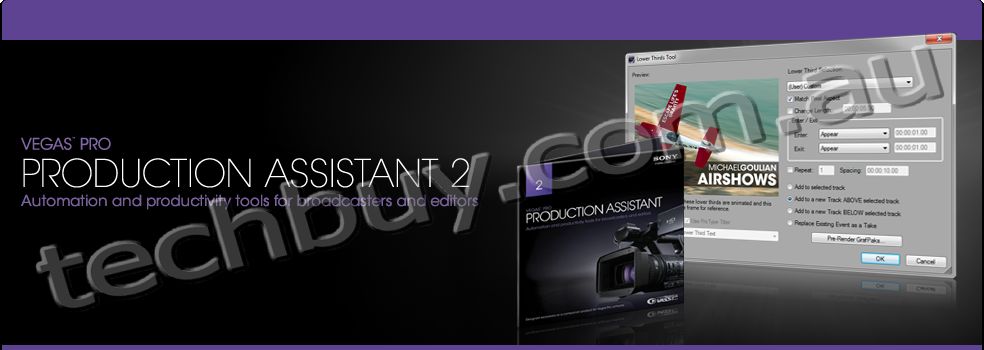
Vegas Pro Production Assistant
Developed in partnership with VASST, the Vegas Pro Production Assistant plug-in enhances the functionality of Vegas Pro software with a set of batch processing and workflow automation tools. The Production Assistant plug-in automates many frequent tasks and processes to save hours of tedious editing work. And, with a complete set of video tutorials to help you get started, it's easy to use.
Workflow Automation Tools
The Vegas Pro Production Assistant plug-in includes tools to automatically insert crossfades between clips, add and customize lower thirds, and create photo and video montages from your media. It also streamlines common tasks such as stereo to mono split, crossfade creation, audio ducking, and archiving. More about workflow automation tools
Project Templates
Setting up a Vegas Pro project as a templatewith your regularly used titles, lower thirds, credits, and empty placeholder events is a powerful way to save time on repetitive tasks. The Production Assistant takes efficiency to a whole new level. Simply select the media you want to replace your placeholder slugs, click to process, and voila! Your project is ready to go. With project templates, youll never have to start with an empty project again!
Batch Processing
Batch processing in the Vegas Pro Production Assistant goes well beyond your run-of-the-mill media encoders. You can select multiple files, multiple output formats, and walk away while Vegas Pro and the Production Assistant output every format you desire. But what really sets the Production Assistant apart is the ability to treat multiple files with processes such as image overlay, aspect ratio convert, broadcast color correction, normalize audio, reduce interlace flicker, adjust playback rate, and more.
New! Hands-free Media Card Workflow
Imagine being able to insert a card into a card reader and walk away, never touching the application until after a finished video file is complete! With Vegas Pro Production Assistant a template can be specified which allows a project to be completely hands-free from card insertion to final output.
New! Automated File-Based Format Cataloging
Insert a memory card, and Vegas Pro Production Assistant 2 will auto-transfer content to folders on your hard drive. This process ensures that all of your footage, along with everything Vegas Pro needs to open your files, is transferred successfully from the memory card to your machine.
Batch Processing
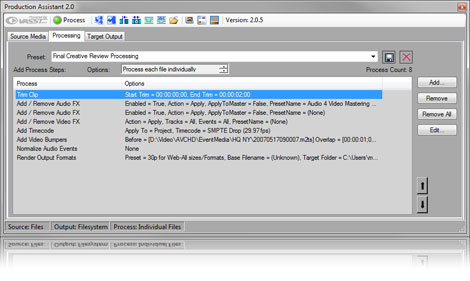
The Vegas Pro Production Assistant plug-in treats multiple files simultaneously with processes such as playback rate adjustment, image sequence generation, reduce interlace flicker, convert to widescreen, broadcast color correction, and more. Batch processing is accomplished through an easy to use, three-tab interface Source Media, Processing, and Target Output.
Source Media
Select the media you want to process, choose from the media on your Vegas Pro timeline, or easily browse to add multiple files for batch processing.
Processing
Choose the processes you want to apply to your source media and control the order in which they are applied. Have a set of processes you use repeatedly? Save them as a preset for easy recall later.
Target Output
Select the file type and destination folder for your final output. Even batch process to multiple output formats. From broadcast to web, all your familiar Vegas Pro render templates are available.
Built-in processes
New! 11 Batch Processes
With hundreds of batch processing combinations now available, you can streamline your editing and delivery workflow. For example, users can now output files for a single master to every social media site, disc, and mobile device in various aspect ratios and bitrates from a single master file.
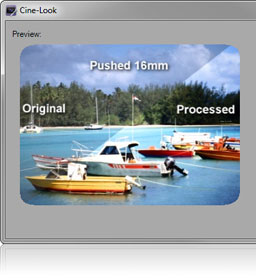
Cine-Look
Choose from 21 built-in video filters, giving your source material the look of popular movies. Looks can be applied to a single track or the master bus.
Broadcast Color Process
Apply automated broadcast color processing presets including correction for tungsten balance, fluorescent lighting, indoor white balance problems and stage lighting issues.
Create Image Sequence
Capture stills from your video at set locations or from the entire project. Use this feature for applications that need image sequences or for automatically generating thumbnails for your videos.
New! Use Vegas Pro Audio and Video Effects
In addition to creating and using a chain of effects, editors can select any video or audio effect available to Vegas Pro and have it added or removed during batch processing. This provides users with the ability to apply frequently used audio and video effects to single files or selection of files through batch processing.
Image Background/Underlay
Add a background image for situations where your project media doesnt fill the frame, for instance on 4:3 footage in a 16:9 project. Choose from included backgrounds or select your own.
Image Overlay
Apply watermarks, station identifiers, or copyright information to your media over your entire project, at set intervals or a set number of times.
Adjust Playback Rate
Speed up or slow down your footage.
New! Render
This feature enables editors to do things like render with and without a network bug, or render before and after effects or other batch processing is done to make multiple versions of videos.
Widescreen Converter
Convert 4:3 content to a widescreen aspect ratio. You can even use the process to reduce interlace flicker and switch content to 30p.
Crop Aspect Ratio
Take a center cut of your footage to match the project settings. Use this feature when you have 16:9 footage in a 4:3 project.
Reduce Interlace Flicker
Add to stills or footage with fine lines to reduce the appearance of flicker in your final output.
New! Add Video Bumpers
Donut files or bumpers (opening/closing video files) may be auto-inserted as a Batch Process; providing editors with an automated workflow ensuring that timestamps, broadcast loops, bars/tone are consistently used for every project.
Create Markers
Automatically insert markers into your media based on events, set time intervals, beats or set evenly spaces markers. Works with various marker types including CD Markers, CD Regions, Command Markers, and more.
Normalize Audio Events
Raise the volume so that the highest level sample in each audio event reaches a standard level.
Workflow Automation Tools
The Vegas Pro Production Assistant includes a set of workflow automation tools to address common tasks that can eat away at your time. Each can be launched from the Vegas Pro Production Assistant toolbar and can be applied to your project in just a few clicks.
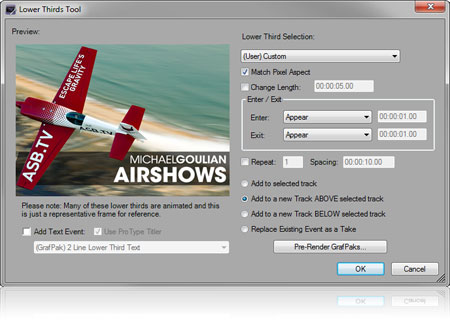
Lower Thirds Tool
Simply insert lower thirds into your Vegas Pro project with complete control over placement and timing. The Vegas Pro Production Assistant includes over 50 animated lower thirds that you can use as is or edit to match your project. The tool also works with third-party and your own custom lower thirds.
Audit Project
Before you wrap up your work, run the Vegas Pro Production Assistant Audit Project process to automatically fix opacity levels, remove gaps, find unused or small events, and verify that all proxies have been replaced with full-resolution media.
New! Lower Third Customization
In addition to creating and using your own lower thirds, the Vegas Pro Production Assistant offers both customization and saving of existing lower thirds. Optionally, editors can create placeholder Text Events for use with a lower third; ready to be edited and customized for each use scenario.
New! Template Creation Assistant
The Vegas Pro Production Assistant can instantly generate templates for common editing processes. In addition to providing project consistency, the Template Creation Assistant also reduces editing errors, provides maximum creative control, and offers better time management. This Template Creation Assistant enables editors to build rich templates with options like repeating slugs, accommodating both audio and video slugs, closing the gaps or expanding the size to match the media, automatically removing unused slugs, and generating slugs from existing projects.
New! Annotated Slugs
The Vegas Pro Production Assistant can permanently embed notes in a slug, informing editors of what processes and/or attributes the slug may contain. This is very valuable for editing houses where several editors are using the same system or when learning how templates work in specific environments. It’s like having a sticky note on each piece of media!
New! Auto-Trim
Auto-trim is the next step in efficient editing. This feature will automatically trim pre/post roll from each selected event on the Vegas Pro timeline. A camera may be set up for 5 seconds of pre/post roll. This feature will automatically trim pre/post roll from each selected event on the Vegas Pro timeline.
New! Global Resample Control
The Global Resample Attribute will assure that all media is correctly managed while converting 50i/25p to 60i/30p. This feature is useful if time-warping has been applied to events on the timeline or when using DSLR footage and needing to convert 30fps media to 29.97.
Normalize Track
Uniformly increase the amplitude of an audio track so that the resulting peak amplitude is increased up to 0dB.
Simple Duck
Insert a simple audio duck to fade background audio so that another audio track can be heard.
Advanced Duck
Automatically ducks audio based on your edits, allowing your background music to fade in and out around other audio in the project.
Channel split
Easily split audio channels into individual mono channels.
Motion Tool
Automate the motion of clips across the screen complete with motion backgrounds.
Montage Tool
Create photo and video montages with pan and scan, transitions, and more.
Reduce Track Gaps
Remove gaps between events on your timeline with a single click.
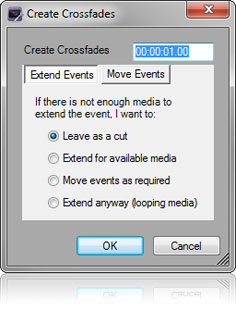
Create Crossfades
Automatically insert crossfades of a length you specify between all the media clips on your timeline.
Archive Project
Save everything from your project media, nested .veg files, lower thirds, etc. into a directory you specify.





 1 Ink Cartridge, Y (Yellow), 13 ml
 1 Ink Cartridge, C (Cyan), 13 ml
 1 Ink Cartridge, M (Magenta), 13 ml
 1 Ink Cartridge, BK (Black), 19 ml
 1 Ink Cartridge, C (Cyan), 9 ml
 1 Ink Cartridge, M (Magenta), 9 ml
 1 Ink Cartridge, Y (Yellow), 9 ml
 1 Ink Cartridge, Y (Yellow), 9 ml
 1 Ink Cartridge, M (Magenta), 9 ml
 1 Ink Cartridge, C (Cyan), 9 ml
 1 Ink Cartridge, BK (Black), 9 ml
 1 Ink Cartridge, BK (Black), 19 ml

 1 Ink Cartridge, BK (Black), 26 ml
 1 Ink Cartridge, C (Cyan), 13 ml
 1 Ink Cartridge, M (Magenta), 13 ml
 1 Ink Cartridge, Y (Yellow), 13 ml
 1 Ink Cartridge, PM (Photo Magenta), 13 ml
 1 Ink Cartridge, PC (Photo Cyan), 13 ml
 1 Ink Cartridge, Y (Yellow), 13 ml
 1 Ink Cartridge, M (Magenta), 13 ml
 1 Ink Cartridge, C (Cyan), 13 ml
 1 Ink Cartridge, BK (Black), 13 ml
 1 Ink Cartridge, BK (Black), 26 ml


